Google Ads for SaaS: How to Run Search Campaigns in 11 Steps
 Praveen Ravi
Last updated on

Google Ads for SaaS is the work of running Search campaigns that reach software buyers while they’re looking for a tool like yours, then judging each campaign on the demos, trials and pipeline it brings in.
Google will happily sell you Performance Max, Demand Gen, YouTube and Display too, but in the B2B SaaS accounts we run, more than 90% of the Google budget goes into Search, and that’s where most of the revenue comes from. So that’s what this guide is about. I’ve written it for founders and demand gen leads at B2B SaaS companies who are setting up Google Ads for SaaS themselves, or who want to check what their agency is doing with the account.
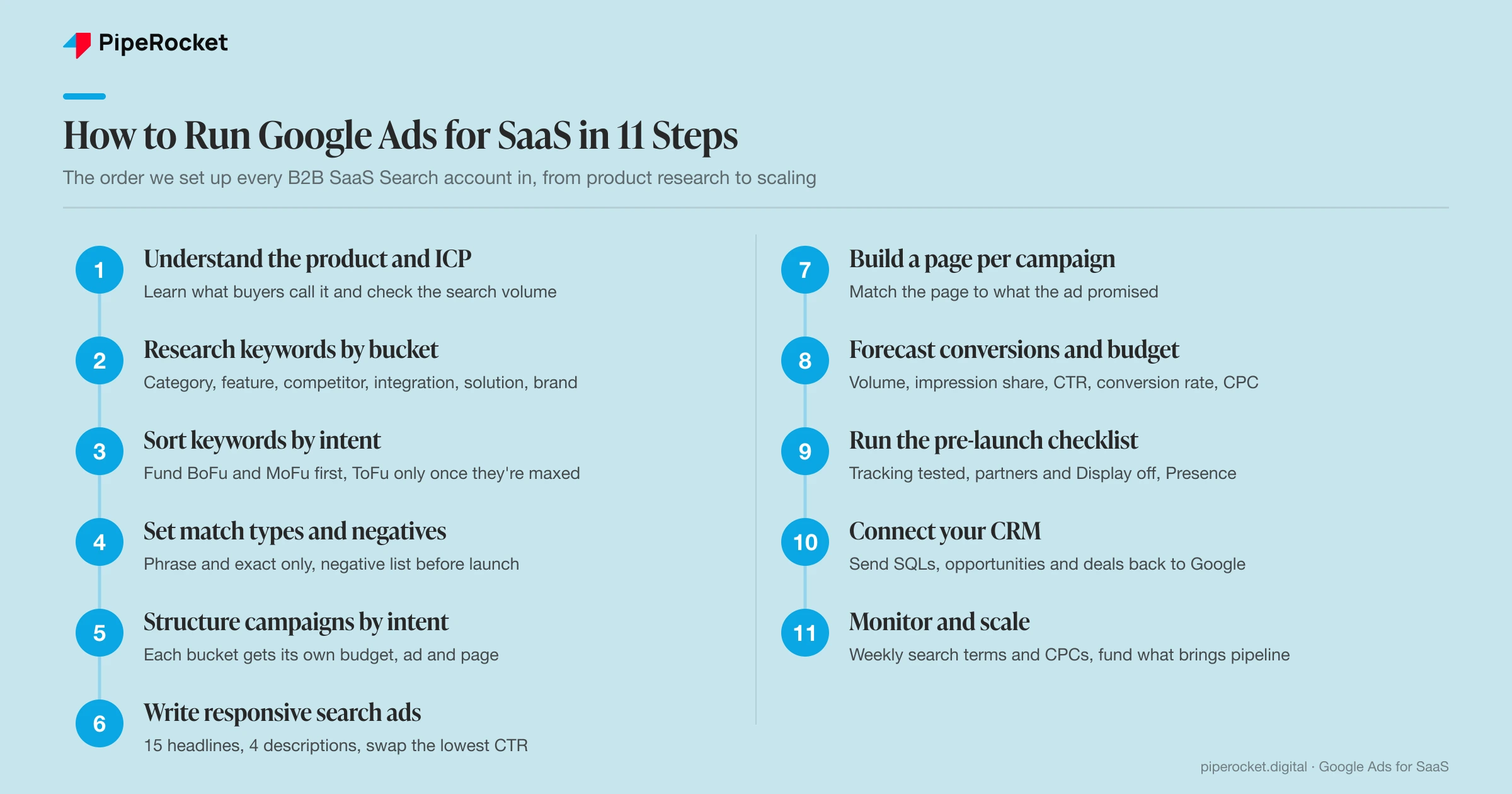
The 11 Steps to Run Google Ads for SaaS at a Glance
- Understand the product, the ICP and the demand: Learn what the product solves and what buyers call it, and check there’s search volume for that category before you spend anything.
- Research keywords by bucket: Build separate lists for category, feature, competitor, integration, solution and brand searches, because each one carries a different intent and cost.
- Sort keywords by intent: Start with BoFu and MoFu searches from people ready to buy or compare, and leave ToFu until those are maxed out.
- Choose match types and build negatives: Run phrase and exact match only on a new account, and upload a negative keyword list before the first click.
- Structure campaigns by intent: Give brand, competitor, category, feature and integration searches their own campaigns so each gets its own budget, ad and page.
- Write responsive search ads: Fill all 15 headlines and 4 descriptions with a plan for each slot, then keep swapping out the headline with the lowest CTR.
- Build a landing page for each campaign: Send every campaign to a page that matches what the ad promised, and only send brand searches to your homepage.
- Forecast conversions and budget: Run search volume through impression share, CTR, conversion rate and CPC so you know your leads and spend before launch.
- Set up tracking and run the pre-launch checklist: Test conversion tracking, switch off Search Partners and Display, start on Maximize Clicks and target people in your locations.
- Connect your CRM and send pipeline data back: Import SQLs, opportunities and closed deals into Google so bidding learns which searches turn into revenue.
- Monitor and scale what works: Check search terms and CPCs every week, cap runaway bids, move to Smart Bidding when the data’s there and fund the campaigns that bring pipeline.
What Is Google Ads for SaaS?
Google Ads for SaaS is paid search advertising for software companies, where you bid on the searches your buyers make and pay when they click, with the goal of getting trials, demo requests and qualified pipeline.
Now, the mechanics are the same whoever you are. You pick your keywords, write your ads and set your bids, and every time someone searches, Google runs an auction. Where it changes for software is after the click. Think about how a SaaS buyer actually buys. They rarely sign up on their first visit, there are usually a few people in on the decision, and the lead you paid for today might not close for months. So if you’re judging the account on clicks and form fills, you’re only seeing half of what happened, and you’ve got to follow those leads into your CRM to see the rest.
Which Google Ads Campaign Types Should SaaS Companies Use?
For most B2B SaaS companies, Search is the campaign type to start with and the one that carries the account, and the others come later, once Search is working and the data is flowing.
Here’s how I’d think about each one:
| Campaign type | What it does for a SaaS company | When I’d add it |
|---|---|---|
| Search | Shows your ad to people searching for a tool, a competitor or an alternative | From day one |
| Performance Max | Lets Google find conversions across Search, YouTube, Display and Gmail, and surfaces search terms you hadn’t thought of | Once Search is converting and your CRM is sending data back |
| Demand Gen | Puts image and video ads in front of people on YouTube, Discover and Gmail | When you want awareness on top of the demand you’re already capturing |
| YouTube | Video ads for awareness and remarketing | Same as Demand Gen, usually later |
| Display | Banner ads across websites | Mostly for remarketing in B2B |
Everything below is about Search, because that’s where the budget and the revenue are for a SaaS company starting out.
How to Run Google Ads for SaaS in 11 Steps
To run Google Ads for SaaS, understand the product and its search demand, research keywords by bucket and intent, set match types and negatives, structure campaigns by intent, write ads, build landing pages, forecast the budget, run a pre-launch checklist, connect your CRM, then monitor and scale.
I do them in this order on every account we set up, because each step feeds the one after it:
| Step | What you do | Tools you’ll need |
|---|---|---|
| 1. Understand the product, the ICP and the demand | Ask the product and sales teams what the product solves, what buyers call it and who decides | Sales and discovery call recordings, Google Keyword Planner |
| 2. Research keywords by bucket | Build keyword lists for each type of search | Google Keyword Planner, Search Console, sales calls |
| 3. Sort keywords by intent | Split them into BoFu, MoFu and ToFu | A spreadsheet |
| 4. Choose match types and build negatives | Set phrase or exact match and write your negative list | Google Ads |
| 5. Structure campaigns by intent | Set up brand, competitor, category, feature and integration campaigns | Google Ads |
| 6. Write responsive search ads | Fill 15 headlines and 4 descriptions, then test them | Google Ads, ChatGPT or Gemini |
| 7. Build landing pages | Give each campaign a page that matches what the ad promised | Your landing page builder |
| 8. Forecast conversions and budget | Work out clicks, leads and spend from search volume | Keyword Planner, a spreadsheet |
| 9. Set up tracking and run the pre-launch checklist | Test conversion tracking and fix the campaign settings | Google Ads, Google Tag Manager, GA4 |
| 10. Connect your CRM | Send qualified leads and closed deals back to Google | HubSpot or Salesforce, Google Ads |
| 11. Monitor and scale | Review search terms and CPCs weekly, then scale what brings pipeline | Search terms report, CRM reports |
Step 1: Understand the Product, the ICP and the Search Demand
The first step happens before you even open Google Ads. Before we spend a dollar of a client’s budget, we sit down with their product and sales teams and ask questions, because if I don’t understand who I’m talking to, I can’t write an ad that makes them click.
These are the questions I ask, and where the answers usually come from:
| Question | Why it matters | Where you’ll find the answer |
|---|---|---|
| What problem does it actually solve? | The pain behind the feature is what your ad has to speak to, say an HR director up until midnight on the 30th worrying about a compliance mistake | Product team, customer interviews |
| What features does it have? | Feature searches are some of the best-converting keywords in SaaS | The product team’s own feature list |
| What does the market call it? | You might call it a “revenue intelligence platform” while your buyers search for “sales dashboard” | Sales and discovery calls |
| How do people search for it? | It tells you the exact words to bid on and the ones to avoid | Sales calls, Search Console, Keyword Planner |
| Is there search volume for this category? | No volume means Search can’t carry your acquisition on its own | Google Keyword Planner |
| Who’s the decision-maker? | A CTO cares about security and implementation, while a CEO cares about ROI, and that changes the headline | Sales team, CRM deal records |
| What triggers the search? | The moment someone realises their current way isn’t working is when they start looking | Discovery calls |
But why go through this much trouble before you’ve even touched a keyword? Because if you don’t know what you’re selling and who you’re selling it to, you can’t run efficient ads. Once you know their intent, who decides and what makes them fill in a form, writing the ads and the landing pages gets a lot easier, and the conversion rate goes up with it.
Choose the category you’ll bid on
Once we’ve got those answers, we look at how mature the product’s category is. In a mature category like CRM or project management, there’s plenty of search volume, but it’s crowded and the clicks are expensive. If you’re creating a new category, there might be very little volume, and you’ll have to get creative to find people searching for the problem in other words.
Then we sit down with the sales team and pick the category that’s easiest for them to close. We want the path of least resistance, and only once that’s decided do we move on to keyword research.
Step 2: Research Keywords by Bucket
When I do keyword research for Google Ads for SaaS companies, I don’t dump a thousand keywords into one list. I sort them into buckets by what the person searching is thinking, because each bucket has a different intent and a different cost.
| Bucket | Example searches | What to expect |
|---|---|---|
| Category | “HR software”, “inventory management system” | High volume and expensive, but you need it to grow |
| Feature | “automated leave tracking”, “multi-currency accounting software” | Long-tail searches with less volume, but people know exactly what they want, so they convert well |
| Competitor | “Asana alternative”, “Trello pricing” | High intent, since they already know the category and you just have to show you’re the better pick |
| Integration | “CRM that integrates with Slack”, “Shopify accounting app” | Often overlooked, and very high intent if you integrate with the tool they use |
| Solution | “invoice approval software”, “employee onboarding tool” | Searches that name the job your tool does, from people who’ve decided they need a tool for it |
| Brand | Your own product name | Cheap and high-converting, but only worth a campaign if you have brand search volume |
I pull the volumes and CPCs for every bucket from Google Keyword Planner. I prefer it to other tools because the data comes straight from Google. Here’s what it shows for “payroll software” in the US:
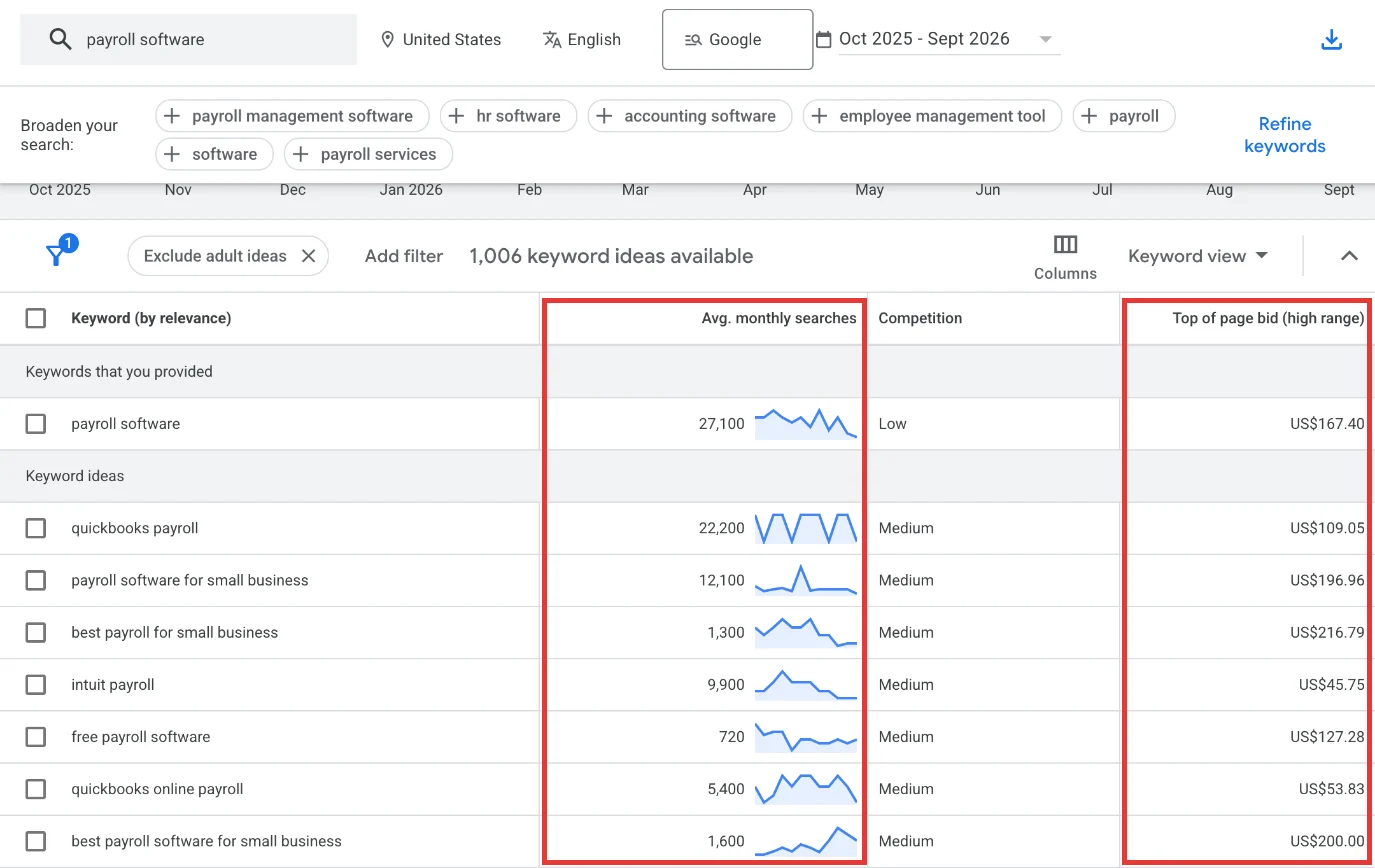
Here’s how I read it. The volume column tells you whether the demand is there at all, and the top-of-page bid gives you a first idea of what a click will cost before you run the forecast. You can already see the buckets in there too. “quickbooks payroll” and “intuit payroll” are competitor searches, “payroll software for small business” is a category search with a company size in it, and “free payroll software” is one I’d probably add to the negative list.
Step 3: Sort Keywords by Intent
Next, I sort every keyword by how close the person is to buying, because that decides what we fund first:
| Funnel stage | What they’re doing | Example searches | Do we bid on it? |
|---|---|---|---|
| BoFu | Ready to buy | “best employee engagement software”, “HR software pricing” | Yes, from day one |
| MoFu | Comparing options | “Culture Amp vs Officevibe”, “Lattice alternatives” | Yes, from day one |
| ToFu | Just learning | “what is employee engagement” | Not until BoFu and MoFu are maxed out |
This is the one I won’t budge on. The people searching “what is employee engagement” are mostly students, researchers and people who are months away from buying, and if you let those searches in early, they’ll eat through your budget before a single demo comes in.
So every client we work with starts on BoFu and MoFu. Only when we’ve spent all we profitably can on those high-intent searches do we start ToFu ads to scale, and even then we treat it as a way to reach more people, rather than a way to get demos.
Step 4: Choose Match Types and Build Your Negative List
Once the keywords are final, we decide the match type for each one, and this is where a lot of SaaS accounts lose money without noticing.
What the three match types do
Google gives you three match types. Here’s what each does, with examples for a project management tool:
| Match type | How you type it | What it does | Searches it could match |
|---|---|---|---|
| Broad | project management tool | Shows your ad for searches loosely related to your keyword, even with different wording | “workflow management tool”, “project tracking tool” |
| Phrase | “project management tool” | Shows your ad when the search includes your phrase, with extra words before or after | “best project management tool”, “project management tool for enterprises” |
| Exact | [project management tool] | Shows your ad only when the search means the same thing as your keyword | “project management software”, “project management app” |
Here’s a tip that will save you a lot of budget: don’t use broad match on a new account. It’s the worst match type right now, because it brings in a lot of irrelevant search terms.
Say you bid on CRM software in broad match. Google can show your ad to someone searching for “CRM jobs in Chicago”, “what does CRM stand for” or “customer relationship management classes”, and you pay for every one of those clicks.
So I stick to phrase and exact match. You reach slightly fewer people, but the traffic is far better. Broad match is something you earn later, once your CRM is sending qualified leads back to Google and you’ve got a long negative list guarding it.
This matters more in 2026, because Google now turns on AI Max by default for new Search campaigns, and AI Max matches searches broadly by design. A Google Ads terms of service update from July 1, 2026 also says the URLs and text you give its AI-powered features can be used across those features to build your campaigns (Google’s policy). So check your match type settings and what you’re handing over before you launch.
Build your negative list before launch
While we plan the keywords we want, we also plan the ones we don’t. Before launch, I upload a standard SaaS negative keyword list so we don’t pay for searches that will never buy. These are the negatives I always start with:
- Open source: if your product isn’t open source.
- Jobs, careers and internships: these come from people looking for work.
- Free, student and template: if you don’t have a free plan, these come from people who’ll never pay.
- Company sizes you don’t serve: “startups” or “enterprise”, depending on who you sell to.
- Industries you don’t serve: “education” or “healthcare”, for example.
- Login and support: otherwise you pay every time an existing customer searches for your login page and clicks your ad.
Step 5: Structure Campaigns by Intent
The way you structure your campaigns is the biggest part of any SaaS Google Ads strategy. Each bucket from your keyword research gets its own campaign, so every intent gets its own budget, its own ad and its own landing page:
| Campaign | What it bids on | Where the click should land | How I fund it |
|---|---|---|---|
| Brand | Your own product name | Your homepage or a demo page | From day one, with a small, capped budget, because a competitor is probably bidding on your name already |
| Competitor | “[Competitor] alternative”, “[Competitor] vs [you]”, “[Competitor] pricing” | A comparison page that names the competitor | A priority from launch |
| Category | “[category] software”, “best [category] tool” | A product page that says clearly who it’s for | A priority from launch |
| Feature | The specific capability someone needs | A feature page with a demo | Once category is running, or first if your category is very expensive |
| Integration | “[category] that integrates with [tool]” | An integration page with setup screenshots | Small budget, high intent |
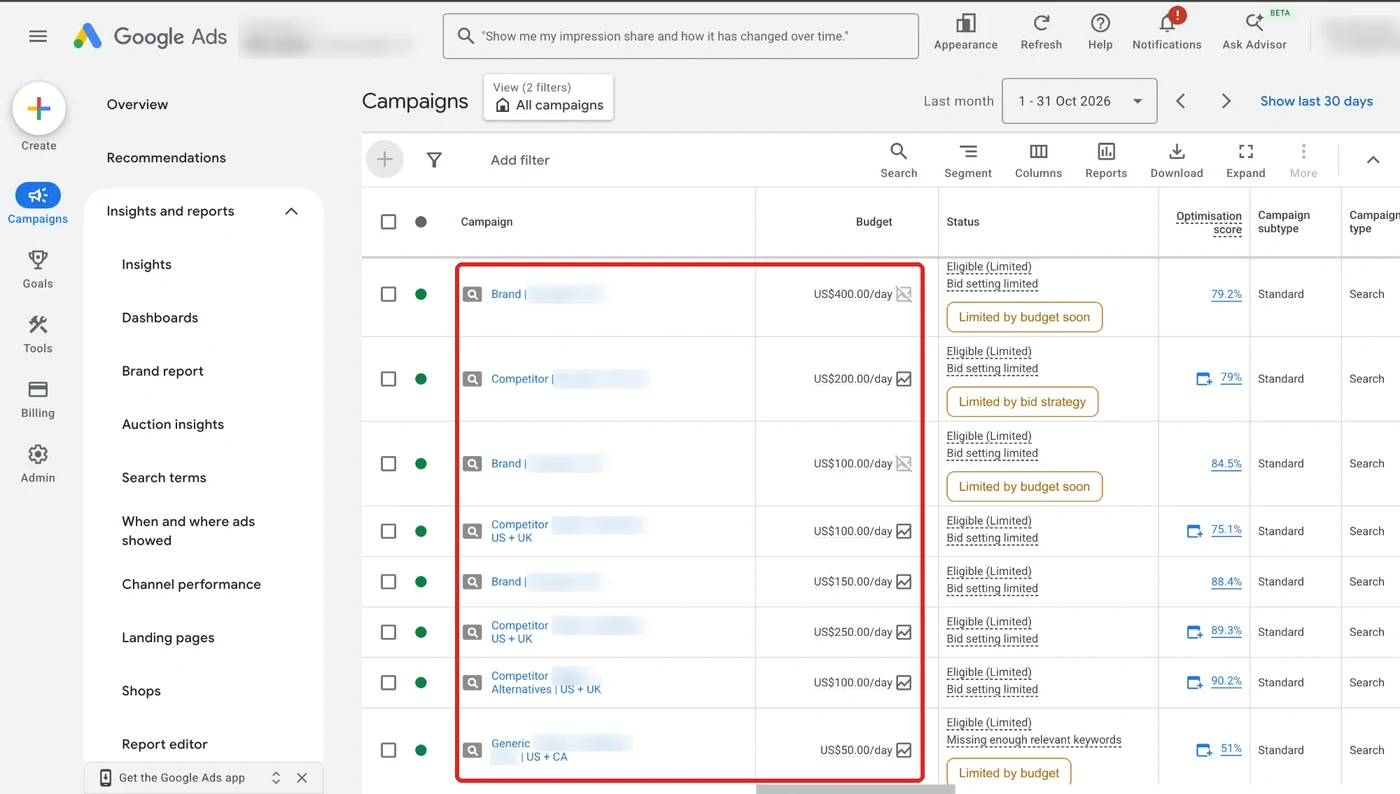
This is what it looks like in one of the accounts we manage. Brand, competitor and generic searches each sit in their own campaign, and each one has its own daily budget:
And here’s a competitor campaign from the searcher’s side. Search “hubspot alternative” and you’ll see Close and Lightfield both bidding on HubSpot’s name, each pitching itself as the one to switch to:
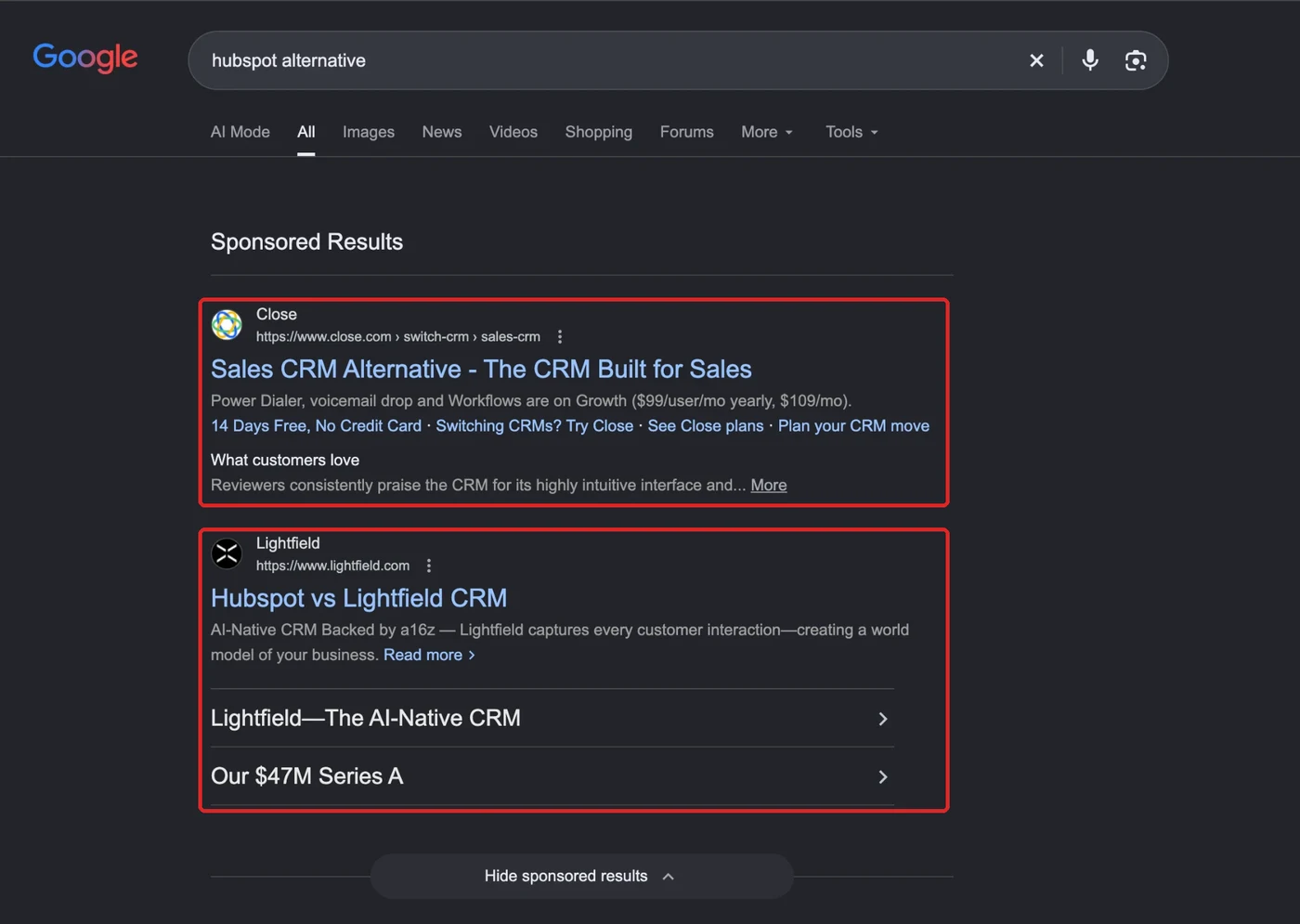
Now, you might be thinking, can’t I just put all of this into one campaign? You could, but the keyword that’s already working will take most of the budget, and the others never get enough clicks for you to find out whether they’d work too.
We saw what happens when you don’t do this when we audited the Google Ads account of a SaaS company making more than $10 million a year. The platform had different use cases for different industries, but the account treated every search the same. Someone searching “best messaging app for teams” and someone searching “WhatsApp alternative” saw exactly the same ad, and about 60% of the traffic was junk.
So we rebuilt the account around intent:
- We started with the people: we worked out the different ICPs and what each one was struggling with.
- We split it by use case: every use case got its own campaign, so the message matched the problem.
- We grouped keywords by funnel stage: BoFu, MoFu and ToFu stayed apart, so we weren’t paying premium prices for people just browsing.
- We matched the messages: we rewrote the ads for the searches they showed on and changed the landing pages based on how visitors behaved.
Over the next two quarters, Google Ads spend came down while revenue went up:
| Quarter | Google Ads spend | Change | Revenue | Change |
|---|---|---|---|---|
| Q1 to Q2 | $95,563 → $84,085 | −12.0% | $235,000 → $253,900 | +8.0% |
| Q2 to Q3 | $84,085 → $69,292 | −17.6% | $253,900 → $373,300 | +47.0% |
That’s about 27% less spend and 59% more revenue from Q1 to Q3, from the same account, without a bigger budget, and about $1.3 million in revenue across the whole engagement.
Step 6: Write Responsive Search Ads
With the campaigns planned, we write the ads. Writing Google Ads copy for SaaS is a whole skill of its own, so here’s the short version we work from, with a payroll tool as the example all the way through.
Start from what the searcher is thinking
By now most of your keywords are BoFu, so the ad has to answer what that person is thinking at the moment they search. An easy way to get there is to ask ChatGPT or Gemini something like this:
Someone is searching Google for “automated payroll software”. What are they actually trying to solve, what would they want to see in an ad before they click, and what would put them off? Give me the answer as a list of pains, must-haves and objections.
You’ll get back things like “worried about tax filing mistakes”, “wants it to work with QuickBooks” and “doesn’t want a long setup”. Each of those becomes a headline or a description.
Fill all 15 headlines and 4 descriptions
A responsive search ad can have 15 headlines of up to 30 characters and 4 descriptions of up to 90. You don’t have to fill them all, but I’d recommend you do, because Google mixes and matches them into lots of combinations and tests them on real searchers. This is how we split the 15 headlines, and what they’d look like for “automated payroll software”:
| Slot | What goes in it | Example headlines |
|---|---|---|
| 4 headlines, pinned to position 1 | Close variations of the target keyword, so the searcher sees what they searched for first | Automated Payroll Software, Payroll Automation Software, Automate Your Payroll Runs, Automated Payroll for SMBs |
| 2 headlines | Your call to action and your offer | Start Your 14-Day Free Trial, Book a 20-Minute Demo |
| 9 headlines | Product information: features, integrations, who it’s for and your number of customers | Taxes Filed Automatically, Syncs With QuickBooks & Xero, Pay Staff in 40+ Countries, Run Payroll in Under 5 Minutes, Built for HR Teams of 50-500, Trusted by [number] Companies, SOC 2 Type II Compliant, No Setup Fees or Contracts, Built for HR Directors |
Pinning four headlines to position 1 means Google only rotates those four in the first slot, so whatever combination it shows, the keyword is always the first thing people read.
And here’s what the 4 descriptions could look like:
| Description | What it does |
|---|---|
| Run payroll, taxes and filings in one place. Start a free trial, no card needed. | Says what it does and gives the offer |
| Pay employees and contractors in 40+ countries, with taxes worked out for you. | Answers the “will it handle tax?” worry |
| Syncs with QuickBooks, Xero and your HRIS, so nobody copies data by hand again. | Answers the integration question |
| See how HR teams like yours close payroll in minutes. Book a 20-minute demo. | Gives the sales-led call to action |
Name the job title and the industry
It also helps to put the job titles you’re targeting and the industry you serve right into the headlines. We’ve seen these perform well, because the right people click and the wrong ones scroll past:
| If you’re targeting | Headline you could try |
|---|---|
| HR directors at hospitals | Payroll for Healthcare HR |
| Finance teams at agencies | Payroll Built for Agency CFOs |
| Founders of small startups | Payroll for Startup Founders |
| Ops leads in construction | Payroll for Construction Crews |
Test three ads, then keep improving the winner
We usually start with three responsive search ads in each ad group, each one leaning on a different angle, and rotate them evenly:
| Ad | Angle | Example headline it leans on |
|---|---|---|
| Ad 1 | Saving time | Run Payroll in Under 5 Minutes |
| Ad 2 | Avoiding mistakes | Taxes Filed Automatically |
| Ad 3 | Fitting their stack | Syncs With QuickBooks & Xero |
After a week or two, we narrow it down to the ad doing best on CTR and ad rank. Then we open the asset details on that ad, which list every headline and description with where it’s pinned and how it’s performed. Here’s one from a finance automation client of ours, with a month of data:
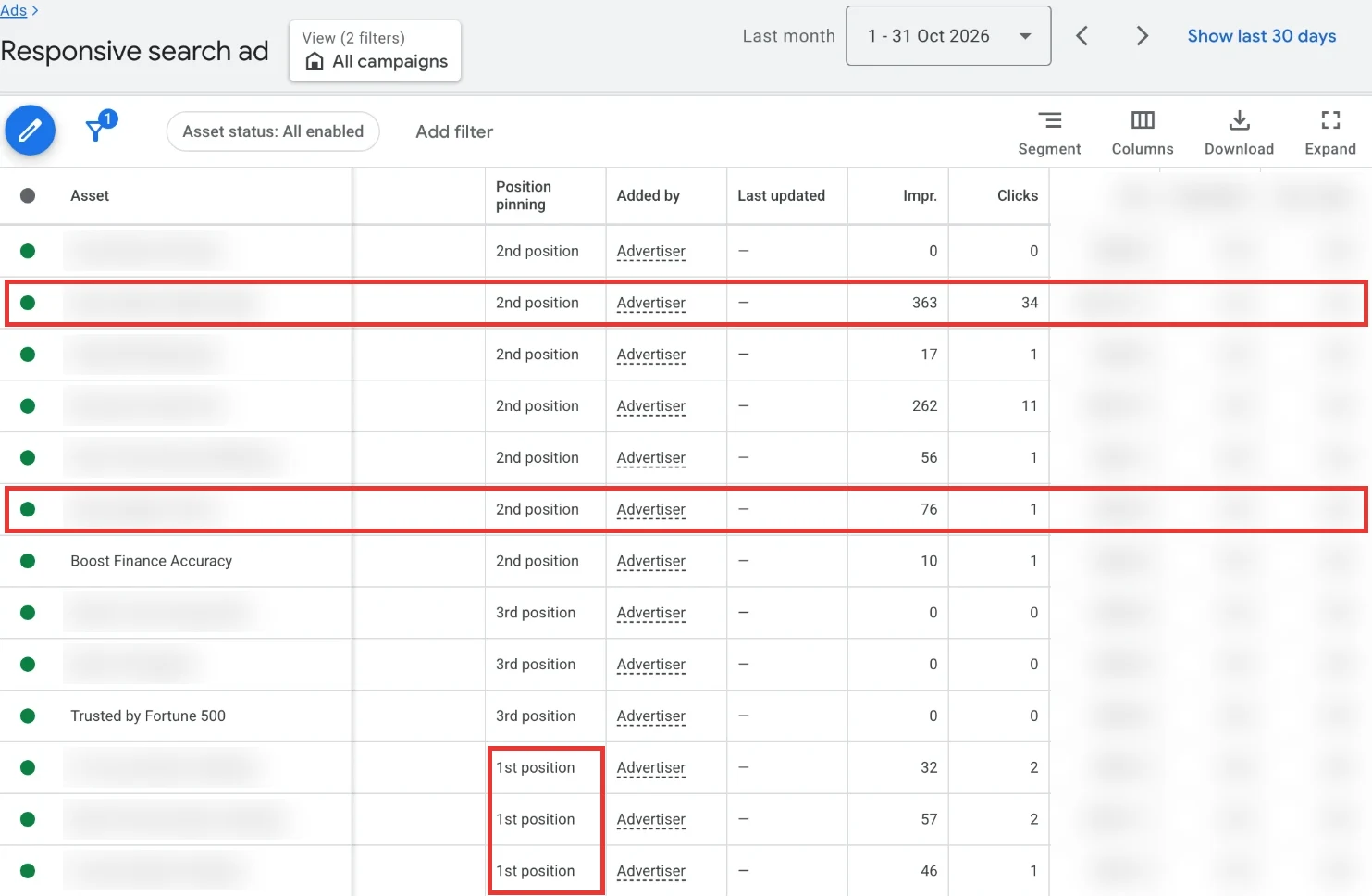
Here’s how we read it. The three headlines pinned to 1st position at the bottom are the keyword variations, so the search term always comes first. Then look at clicks against impressions for each headline. The second headline from the top got 34 clicks from 363 impressions, which is about 9%, while the sixth got 1 click from 76, which is about 1%. So the sixth is the one we’d take out, and we’d put in a slight variation of the second. With numbers this small, give a headline a few more weeks before you judge it, and check that the headlines Google keeps showing together still make sense for the keyword. Do that every couple of weeks and the ad keeps getting better without you rewriting it from scratch.
Step 7: Build a Landing Page for Each Campaign
Every campaign gets a landing page that matches what the search was looking for, because if the ad promises one thing and the click lands on your homepage, you’ve paid for that click and then lost it. This is what each campaign’s page should show:
| Campaign | What the searcher expects | What the page should show |
|---|---|---|
| Category | To see whether you fit the category | A product page with clear positioning and who it’s for |
| Feature | Proof the feature works | A feature page with a demo of that feature |
| Competitor | A reason to switch | A comparison page that names the competitor |
| Integration | Proof the integration exists | An integration page with setup screenshots |
| Solution | A tool for the job they named | A use-case page for that job |
| Brand | Confirmation they’ve found you | Your homepage, the one campaign where it’s the right page |
Product-led vs sales-led: what changes
What you send people to, and what you count as a conversion, changes with how you sell and what your product costs:
| Product-led | Sales-led | |
|---|---|---|
| The conversion you track | Trial or freemium signup | Demo request |
| The landing page | A trial page with as few form fields as possible | A demo page with a calendar to book a slot |
| What you send back to Google | Activations and paid upgrades | SQLs, opportunities and closed deals |
| What a lead can cost | Low, because each customer pays less, and under about $40 to $50 a month the clicks rarely pay back | Much higher, because one deal can be worth thousands a year |
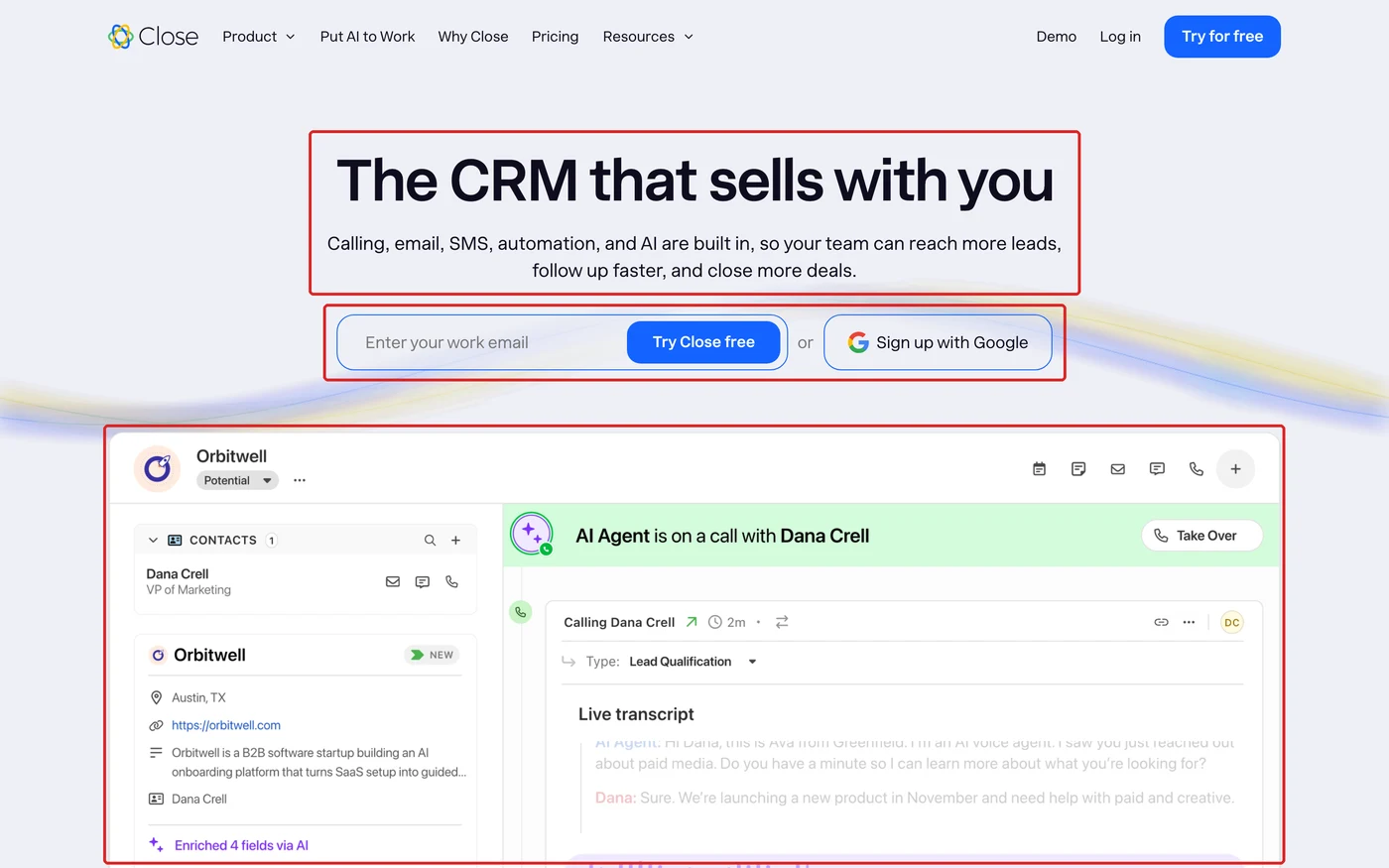
Here’s a product-led page done well, from Close. You get one line on what the product does, a signup that’s just an email box or a Google sign-in, and the product itself right underneath, so you can see what you’d be trying:
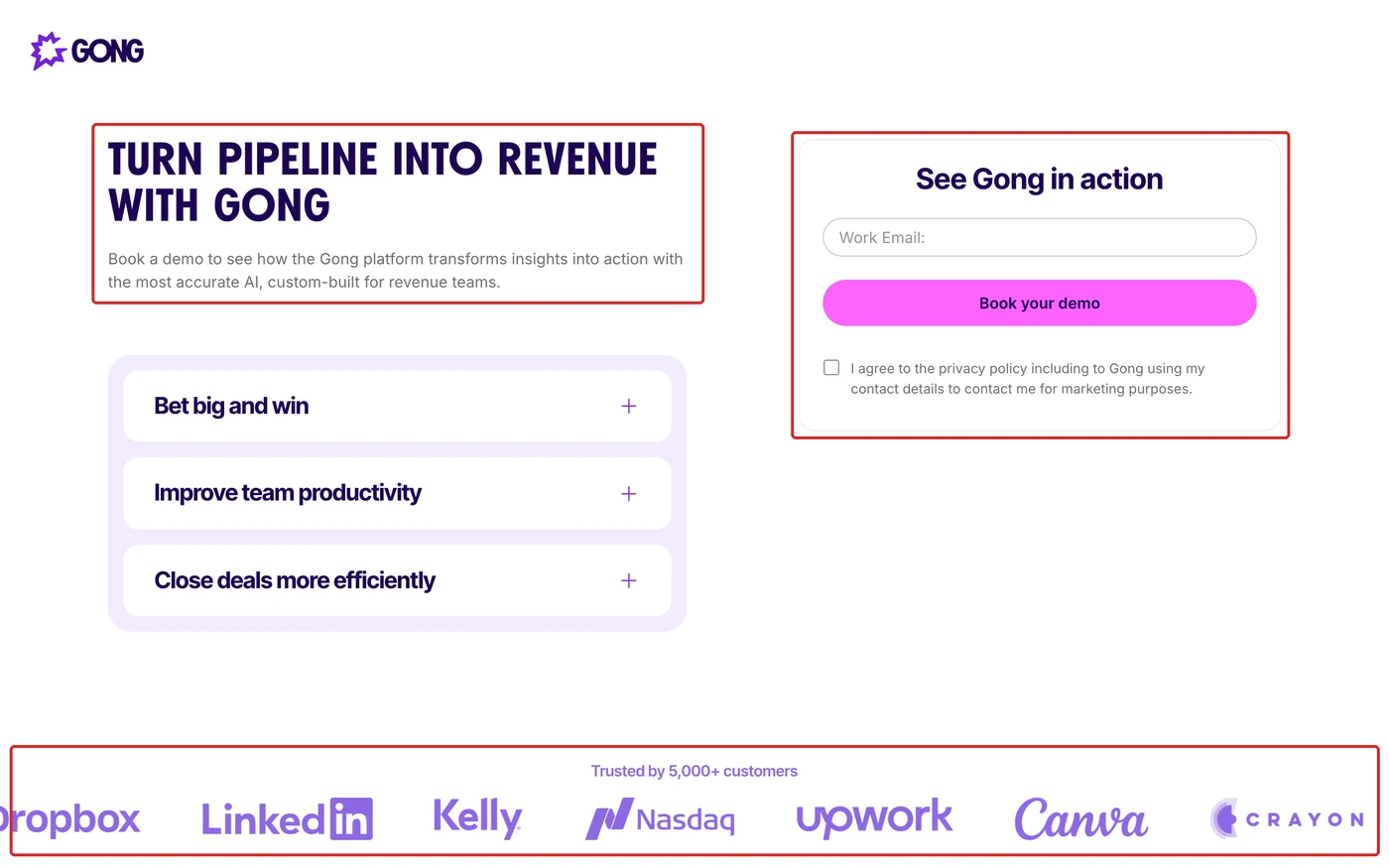
And this is the sales-led version, Gong’s demo page. There’s no menu to wander off into, just the promise, a short form to book the demo and the customer logos below it as proof:
Step 8: Forecast Conversions and Budget
Before we launch, we forecast how many conversions the account can get and the most budget we’ll need to get them. Clients always ask me “How much budget do I need?” and “How many leads will I get?”, and on Google you can actually model both.
This is how the forecast works:
- Add up the search volume for all the keywords you want to target.
- Estimate your impressions from that volume, based on the impression share you can realistically win.
- Estimate your clicks from the impressions, using your expected CTR.
- Estimate your conversions from the clicks, using your landing page conversion rate.
- Multiply your clicks by the average CPC of your keywords to get the total cost.
- Divide the total cost by your conversions to get your cost per conversion.
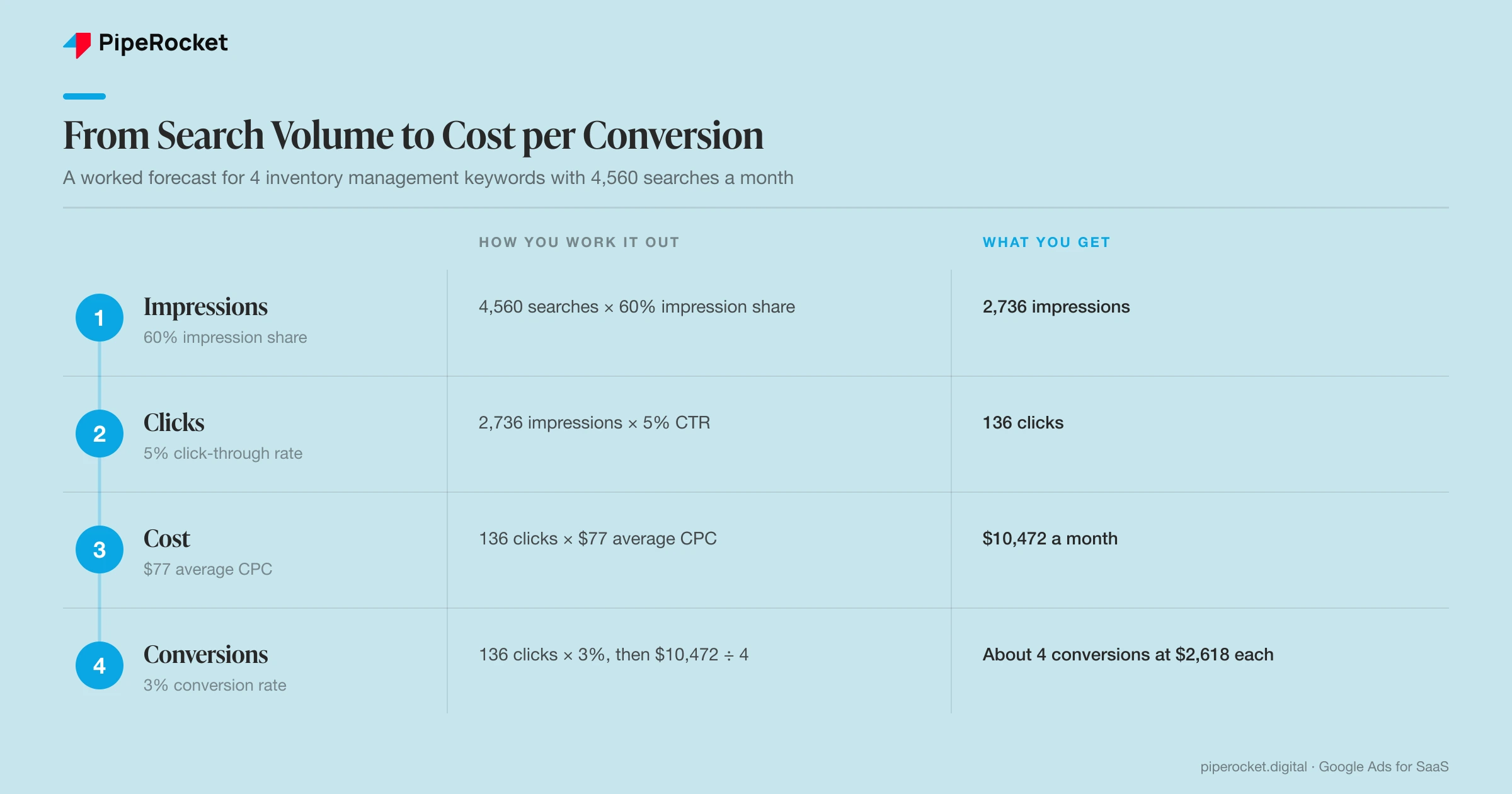
Here’s an example I worked through for four inventory management keywords:
| What you work out | How | Example |
|---|---|---|
| Search volume | From Keyword Planner, for your 4 keywords | 4,560 searches a month |
| Impressions | Volume × impression share (50 to 60% is a common industry standard) | 4,560 × 60% = 2,736 |
| Clicks | Impressions × CTR | 2,736 × 5% = 136 |
| Cost | Clicks × average CPC | 136 × $77 = $10,472 |
| Conversions | Clicks × conversion rate | 136 × 3% = about 4 |
| Cost per conversion | Cost ÷ conversions | $10,472 ÷ 4 = $2,618 |
All these percentages will change based on your industry, and so will the CPC, which was high in this example because inventory management is a crowded category. For a reference point, across the 53+ B2B SaaS accounts in our Google Ads benchmarks, non-brand clicks average $13.75 and a non-brand lead about $207, while brand clicks average $3.12.
And this is also how you forecast your SaaS PPC budget. Your starting budget comes out of this chain, so it depends on how many conversions you need and what the search volume and CPCs look like for your keywords. Some accounts need $5,000 a month, while another might need $2,000 a day.
One more check I run: you want at least 10 clicks a day on a keyword to learn anything from it. So if a keyword’s CPC is $50, that’s $500 a day, and at $100 a day you’d get two clicks, which doesn’t tell you much.
Step 9: Set Up Conversion Tracking and Run the Pre-Launch Checklist
Before any campaign goes live, we go through our own pre-launch checklist. It covers the settings a new campaign needs to get started properly and get out of the learning phase quickly, because a new account that launches with the wrong settings spends its first weeks learning from the wrong clicks.
These are the settings on it that matter most:
| Setting | What we set | Why |
|---|---|---|
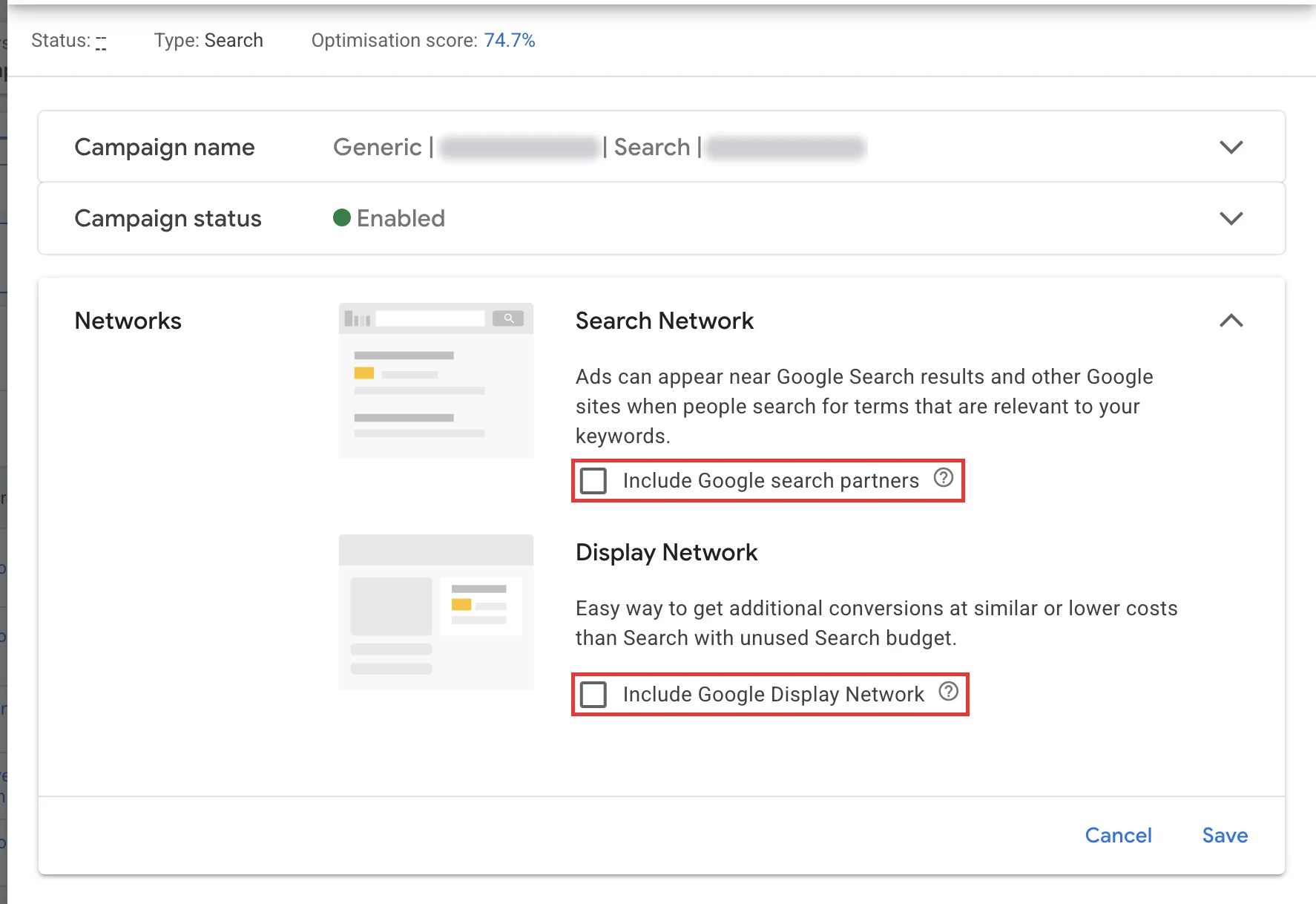
| Search Partners | Off | Partner sites send lower-intent clicks you can’t see properly |
| Display Network | Off for Search campaigns | Otherwise Google can show your search ads as banners on websites |
| Bid strategy | Maximize Clicks to start | The account has no conversion data yet, so automated bidding has nothing to learn from |
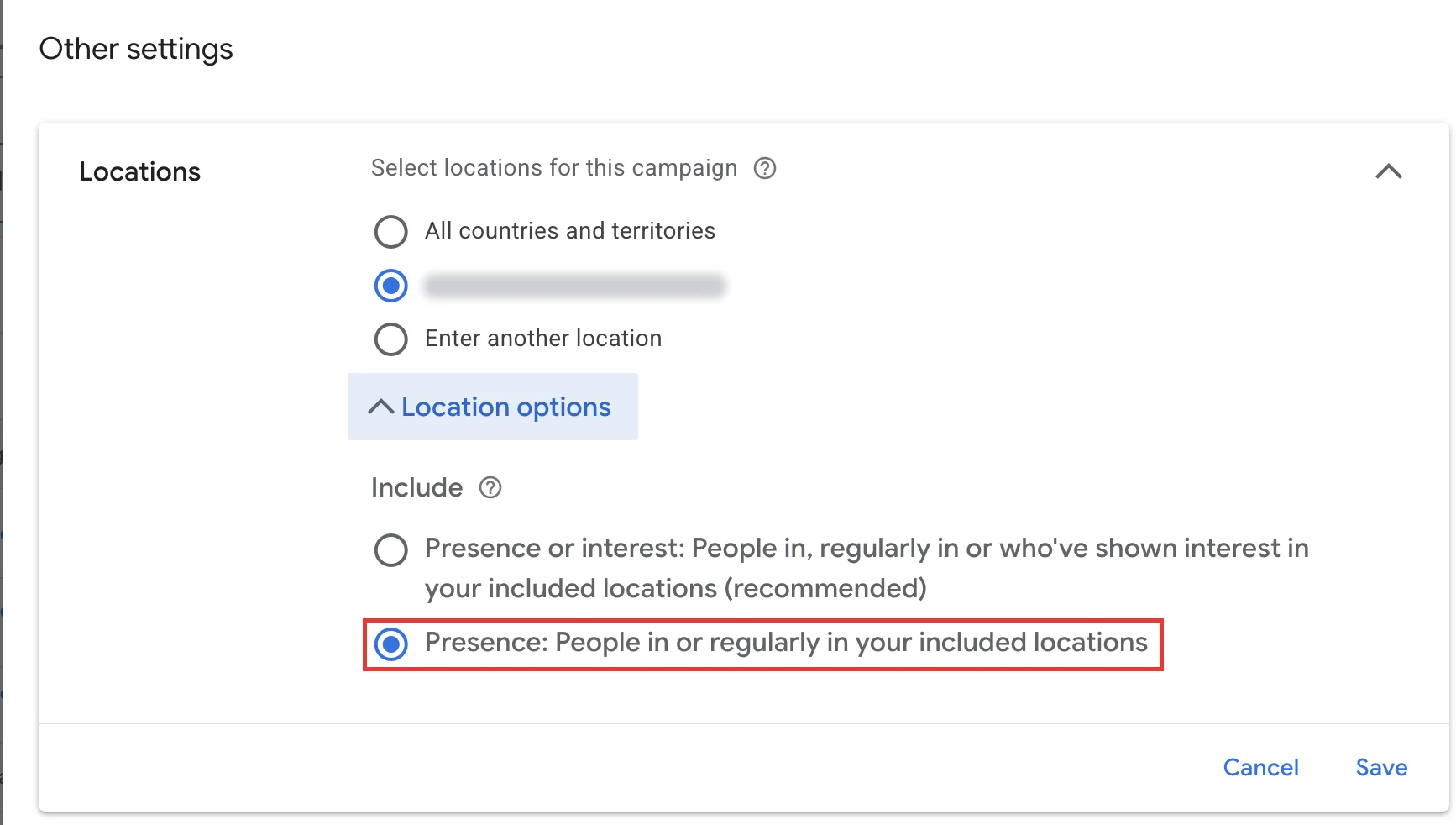
| Locations | The countries or regions you sell to, set to people in those locations | The default also targets people who are only interested in a location, so you’d pay for clicks from outside your market |
| Negative keywords | Your standard SaaS list uploaded | So the first clicks aren’t wasted |
| Conversion tracking | A test form fill, recorded end to end | Every decision after launch depends on this number being right |
| Google Analytics 4 | Linked to your Google Ads account | So you can see what paid visitors do after the click, like which pages they read and where they drop off |
| Click ID field | A hidden field on every form that stores Google’s click ID (GCLID) | You need it to connect your CRM in the next step |
Two of these settings are the ones people miss most, because Google switches them on by default. Here’s what the networks look like on one of our Search campaigns, with search partners and the Display Network both left unticked:
And here’s the location setting. Open Location options under Locations, and pick the second option, Presence, so you only reach people who are actually in the places you sell to:
Step 10: Connect Your CRM and Send Pipeline Data Back to Google
Out of the box, Google Ads only knows that someone filled in a form. It has no idea whether that person was a student or the VP who signed a six-figure deal, so if all you give it is form fills, its bidding goes after whoever fills in forms most cheaply.
So you’ve got to tell Google what happened next. Once your CRM is connected, every lead’s later stages go back into Google Ads, and it can finally see which searches turned into revenue:
| What you send back | When it happens | What Google learns from it |
|---|---|---|
| Lead or trial signup | On the day of the click | Who fills in forms |
| MQL | Days later | Which leads match your ICP |
| SQL | After sales qualifies them | Which leads sales wants to talk to |
| Opportunity | Once a deal is open | Which searches start real deals |
| Closed-won, with the deal value | Weeks or months later | Which searches bring in revenue, and how much |
This is how we set it up:
- Capture the click ID: the hidden GCLID field from your pre-launch checklist saves Google’s click ID on the contact record when someone fills in a form.
- Connect HubSpot or Salesforce: both have a Google Ads integration that sends lifecycle stages back as offline conversions, or you can upload them as a file.
- Turn on enhanced conversions for leads: it matches leads to clicks using the hashed email from the form, which catches people whose click ID got lost.
- Send it automatically: a daily sync is better than an upload someone has to remember, and Google only accepts offline conversions within 90 days of the click.
- Tag every campaign in the CRM: save the campaign and ad group on the contact record, so you can report pipeline by campaign as well as send it back.
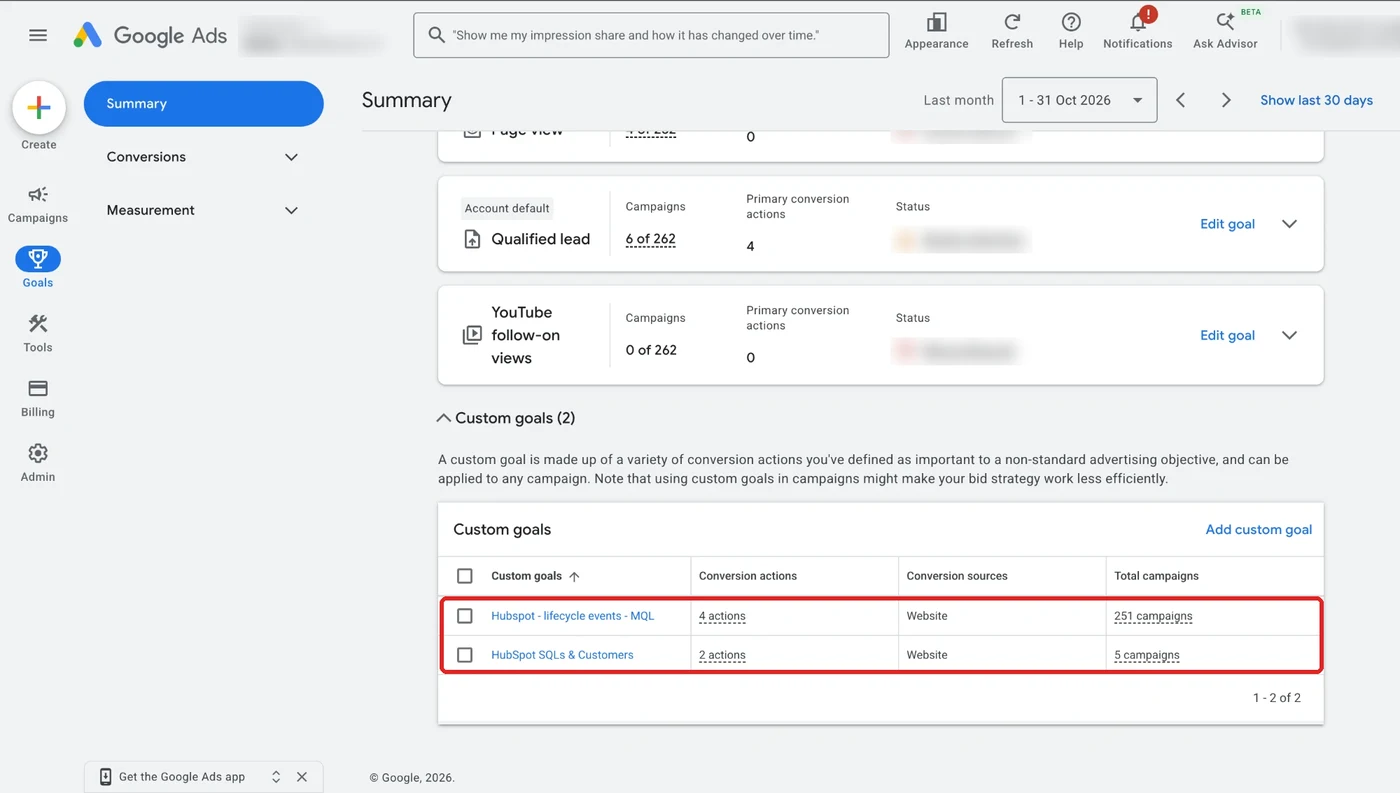
Once it’s connected, the stages show up in Google Ads as conversion goals. In this account we manage, there’s one goal for MQLs and one for SQLs and customers, both coming straight from HubSpot lifecycle stages:
On a long sales cycle, give it time. A lead from a MoFu keyword might not show up as an opportunity in the month it clicked, so judge those campaigns on a window that matches how long your deals actually take.
Step 11: Monitor and Scale What Works
Once the campaigns are live, the work shifts to watching where the money goes, because Google Ads for SaaS doesn’t run itself.
Check search terms and CPCs every week
The search terms report is the most honest report in Google Ads. It shows you the actual words people typed before they clicked your ad, which aren’t always the keywords you bid on.
I review it every week. Here’s an example report for an expense management tool. The rows in red are searches that were never going to buy, like “free expense tracker app”, “expense report template excel” and “expense management jobs”, and between them they’ve eaten about half the spend:
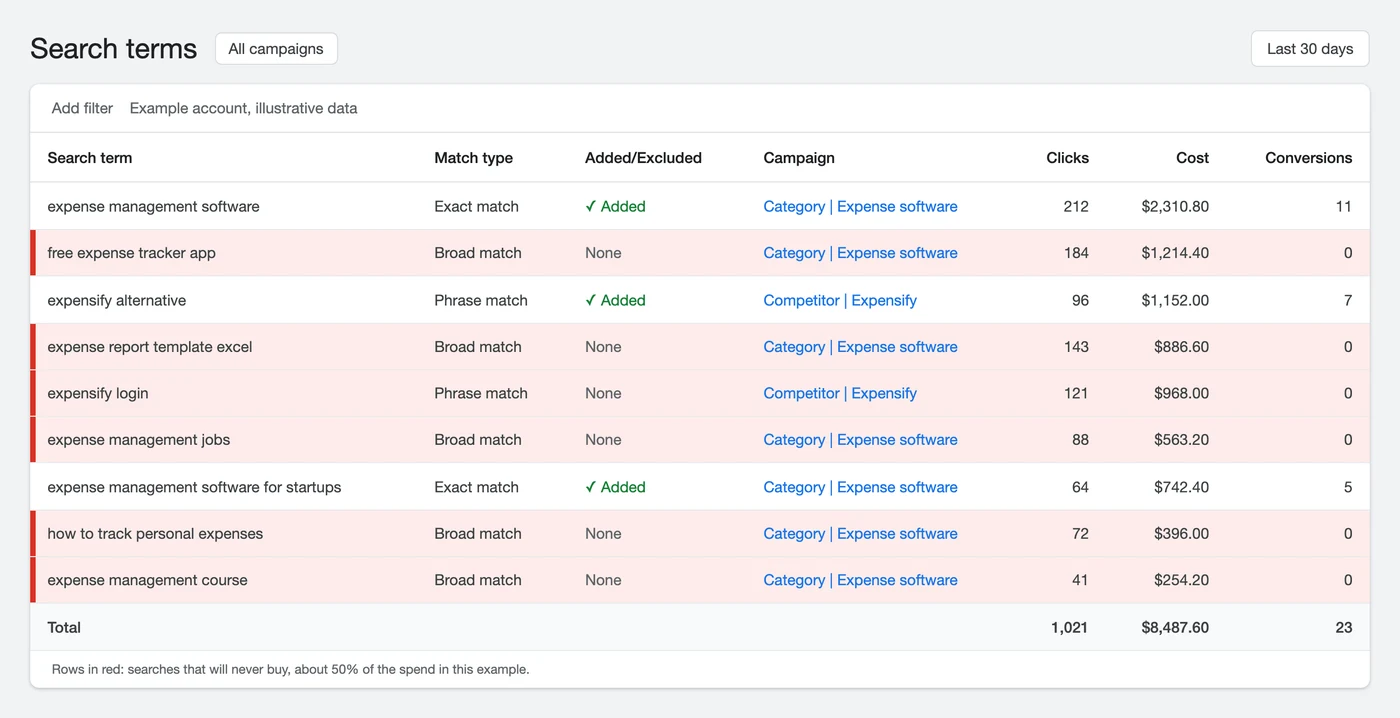
When I see rows like these, I add “free”, “template” and “jobs” to the negative list straight away. Over time, the wasted spend drops because you’ve blocked the bad searches, and sometimes you find good new keywords in there too.
I watch the CPCs just as closely. If a keyword costs a lot per click and isn’t bringing in conversions, I put a CPC bid cap on it. That’s how you tell Google “I’ll bid on this, but I won’t pay more than $50 a click”, so one expensive keyword can’t use up the whole budget.
Move to Smart Bidding when the data is there
We start every account on Maximize Clicks and then move to Smart Bidding once there’s enough conversion data for it to learn from:
| Stage | Bid strategy | When to move on |
|---|---|---|
| Launch | Maximize Clicks, with a max CPC limit | Once conversions are coming in steadily |
| Learning | Maximize Conversions | Once your CRM is sending qualified leads back |
| Scaling | Target CPA, or Maximize Conversion Value or Target ROAS with deal values | When you know what a qualified lead is worth to you |
Every time you change the bid strategy, Google goes back into a learning phase, so change one thing at a time and give it a few weeks before you judge it. Smart Bidding for SaaS PPC works best on a long sales cycle when it’s learning from your CRM data rather than form fills.
Add Performance Max once Search is working
I treat Performance Max as a way to discover new searches, once Search is already working. Across our benchmark accounts, its leads look cheap, at about $25 each, but it mixes in softer conversions, so I’d count them as volume and check them against what sales accepts.
The way I use it:
- Read its search terms: check the Performance Max search terms insights as often as you check Search.
- Move the winners into Search: when a term keeps showing up and converting, add it to a Search campaign where you control the bid and the ad.
- Stop it bidding against you: add your Search keywords as negatives in Performance Max and use brand exclusions, so it isn’t competing with your own campaigns in the same auction.
Run light remarketing for warm visitors
Remarketing is worth running as a light layer on top of Search, because SaaS buyers rarely decide in one visit. I keep the lists tight: people who’ve been on your pricing, demo or comparison pages in the last few weeks, with a frequency cap so you aren’t following everyone who bounced off a blog post. Think of it as a nudge for people who are already weighing you up, and keep Search as the place you go for new demand.
Watch the Google Ads changes going into 2027
A few changes Google made this year carry on into 2027, and they touch the same settings as your pre-launch checklist and your budget:
| Change | What’s changing | What to do |
|---|---|---|
| Channel priorities on Search campaigns (rolling out from October 2026) | You can now rank Google Search, Search partners and the Display Network as separate priorities, and cap how much of the daily budget the low-priority ones can use (Google) | Keep Search partners and Display off on new campaigns. If you’ve got them on already, set them to low priority with a small budget cap |
| Display on Search campaigns (from February 2027) | For Search campaigns with the Display Network turned on, the current spend split goes away, and Google says you’d keep your current setup by putting Display on low priority with a 50% budget allocation (Google) | Check every Search campaign for Display before February, then switch it off or give it a cap you’re happy with |
| Budget pacing (since June 1, 2026) | For campaigns with ad schedules, Google paces toward the full monthly limit (30.4 × your daily budget), and on scheduled days it can spend up to 2 × your daily budget (Search Engine Land) | If you run ads only on certain days, size your daily budget against the monthly cap. A weekend-only campaign at $100 a day that used to spend about $800 a month can now pace toward about $1,600 |
Decide what to scale, fix or stop
Every month, I pull spend and cost per SQL by campaign, rather than one total for the whole account. That view shows you two things: the campaigns eating budget for very few qualified leads, and the ones converting well that are still held back by their budget.
Then each campaign goes into one of three groups:
- High spend, low return: usually the wrong targeting or a landing page that doesn’t match the search, and rarely a bidding problem.
- Low spend, high return: these are starving, so give them more budget straight away.
- High spend, decent return but a rising cost per lead: fix the landing page or the offer before you touch the bids.
Before you scale anything, check your LTV:CAC ratio and your CAC payback, which tell you whether a customer is worth more over their lifetime than it cost to win them, and how many months it takes to earn that cost back. The forecast sets your goals, and the lifetime value check just tells you whether the result is worth having.
And when search runs out of room, because you’ve won most of the impression share on your high-intent keywords, that’s when it makes sense to open up ToFu searches or add SaaS PPC channels like LinkedIn.
How Much Does Google Ads for SaaS Cost?
Google Ads for SaaS costs whatever your forecast says the ads need, plus $4,000 to $5,000 a month to have an agency run it, $4,500 to $6,500 for an in-house team, or around $10,000 for a hybrid setup.
The ad spend itself has no standard number, because it comes from your forecast: how many conversions you need, and the search volume and CPCs in your category. The management costs are the averages I’ve seen from working in-house, with agencies and now running one, for a SaaS company that’s already scaling:
| Model | What you get | What you pay for | Typical cost |
|---|---|---|---|
| Ad spend | The clicks themselves | Paid to Google | From your forecast: $5,000 a month for one account, $2,000 a day for another |
| In-house | A paid media manager and a specialist | Two salaries: $3,500 to $4,500 for the manager and $1,000 to $2,000 for the specialist | $4,500 to $6,500 a month |
| Agency | An account manager, a specialist and an analyst | One monthly retainer | $4,000 to $5,000 a month |
| Hybrid | An in-house team working with an agency | Salaries plus a retainer | Around $10,000 a month |
If you’re still going from zero to one, I’d go with an agency and an account manager, which usually costs $3,500 to $4,500 a month. At that stage, you don’t know yet whether Google Ads will work for you, so it makes more sense to test it with an agency than to hire a team for it.
How PipeRocket Runs Google Ads for SaaS
We handle SaaS Google Ads management the way this guide lays out: we start with your product and sales calls, forecast from real search demand, launch on our pre-launch checklist and connect your CRM so Google learns from pipeline. If your Google Ads spend isn’t showing up as pipeline, we’ll audit your Google Ads account and show you what to fix first.
Frequently Asked Questions
How do I run Google Ads for my SaaS?
Start with Search: understand what your product solves and what buyers call it, bid on high-intent keywords in phrase and exact match, send each campaign to a matching landing page, and connect your CRM so Google learns from qualified leads.
If you’re just starting, keep it simple. Take one keyword like “automated payroll software”, write a headline that repeats it and send the click to a page about automated payroll software. Get those three things to match before you build anything bigger.
Is Google Ads worth it for SaaS?
Google Ads for SaaS is worth it when there’s search volume for your category and your cost per customer comes in below what a customer is worth over their lifetime.
It reaches people who are already looking for a tool, which is why it’s usually the first paid channel we start a SaaS company on. If almost nobody searches for your category yet, Search won’t carry your acquisition on its own, and you’ll need awareness channels alongside it.
How do I advertise my SaaS?
You advertise a SaaS product by starting with Google Search ads for the buyers already looking for a tool like yours, then adding other channels once Search is converting.
Search is where most B2B SaaS budget earns its return, which is why this guide is about it. Once that’s working, LinkedIn puts you in front of the right job titles before they search, and remarketing keeps you in front of people who visited but didn’t convert yet.
How much should a SaaS company spend on Google Ads?
A SaaS company should spend what its forecast says it needs to hit its conversion target, which depends on the search volume and CPCs for its keywords.
Run your keywords through the forecast in this guide: search volume, impression share, CTR, conversion rate and CPC. That’s why one account needs $5,000 a month and another needs $2,000 a day.
Is $100 a day enough for Google Ads?
$100 a day is enough for Google Ads only if your CPCs are low enough to buy at least 10 clicks a day on the keywords you’re testing.
At a $10 CPC, $100 a day gets you 10 clicks. At $50, it gets you two, which isn’t enough to learn anything, so check the CPCs in Keyword Planner before you settle on a daily budget.
Should SaaS companies use Performance Max or Search?
SaaS companies should start with Search and add Performance Max once Search is converting and the CRM is sending qualified leads back.
Search gives you control over which searches you pay for. Performance Max is useful later for finding new search terms, but it mixes in softer conversions, so check its leads against what your sales team accepts.
Why avoid broad match on a new SaaS account?
Broad match pulls in job seekers, students and people researching a topic, who never convert, and it spends your budget before you have the data to guide it.
Start with phrase and exact match and a strong negative list. Broad match is something you can test later, once your CRM is sending qualified leads back to Google.
What is the average CPC for B2B SaaS on Google Ads?
Across the 53+ B2B SaaS accounts in our benchmarks, non-brand Google Ads clicks average $13.75 and brand clicks $3.12.
Individual keywords swing a long way either side of that. Crowded categories and competitor terms can cost several times the average, while narrow feature keywords often cost less.
Should SaaS companies bid on competitor brand names?
Yes, competitor campaigns are some of the highest-intent campaigns a SaaS company can run, because the person searching already knows the category.
Send those clicks to a comparison page that names the competitor, and keep your claims accurate. Run a campaign on your own brand too, because your competitors are probably bidding on it.